Mohamed Ramadan
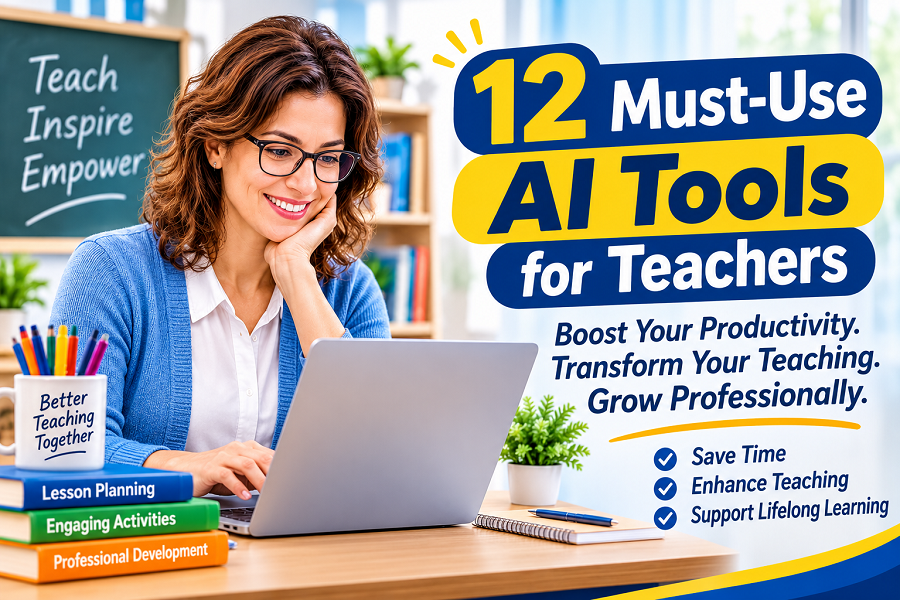
Welcome, teachers! Today, we explore 12 AI tools that can boost your professional growth. We’ll introduce each tool with simple steps on how to use it. The goal is to save time, enhance teaching, and foster lifelong learning.
Tool 1 – ChatGPT (AI Writing & Brainstorming Assistant)
Why use it?
– Generate lesson ideas, create quizzes, draft emails, and get writing support.
How to use it?
- Go to chat.openai.com or use an integrated app.
- Type your query or request (e.g., “Create a quiz on photosynthesis”).
- Review and customize the AI-generated content.
- Use it to brainstorm ideas or clarify concepts.
Tool 2 – Canva (AI-Powered Design for Educators)
Why use it?
– Create engaging presentations, posters, and worksheets quickly.
How to use it?
- Sign up at canva.com.
- Choose an education template or start from scratch.
- Use AI design suggestions or the text-to-image feature.
- Customize with your content and download or share directly.
Tool 3 – Grammarly (AI Writing & Grammar Checker)
Why use it?
– Improve your writing clarity, grammar, and tone in emails, lesson plans, and reports.
How to use it?
- Install Grammarly extension or use the online editor.
- Paste your text or write directly in the tool.
- Review AI suggestions for grammar, style, and tone.
- Accept changes or edit manually.
Tool 4 – EdPuzzle (Interactive Video Creation)
Why use it?
– Turn videos into interactive lessons with embedded questions.
How to use it?
- Go to edpuzzle.com and create an account.
- Upload a video or select one from YouTube.
- Add quizzes, polls, or voice notes at specific points.
- Assign to students and track their progress.
Tool 5 – Quizlet (AI-Enhanced Flashcards & Study Tools)
Why use it?
– Create flashcards and study sets for students or your own learning.
How to use it?
- Sign up at quizlet.com.
- Create a new study set with terms and definitions.
- Use AI suggestions to enhance questions or explanations.
- Share with students or use for self-study.
Tool 6 – Otter.ai (AI Transcription & Note-Taking)
Why use it?
– Transcribe meetings, lectures, or your own notes automatically.
How to use?
- Download the Otter.ai app or use the web version.
- Start recording or upload an audio file.
- Let AI transcribe and organize the text.
- Edit and share transcripts as needed.
Tool 7 – Miro (AI-Enhanced Collaborative Whiteboard)
Why use it?
– Facilitate brainstorming, planning, and collaboration with interactive digital whiteboards.
How to use it?
- Sign up at miro.com.
- Create a new board for your class or team.
- Use AI templates or sticky notes to organize ideas.
- Invite participants to collaborate in real-time or asynchronously.
Tool 8 – Scribe (AI-Powered Process Documentation)
Why use it?
– Automatically create step-by-step guides from your screen recordings.
How to use it?
- Install the Scribe browser extension.
- Start recording your screen while performing a task.
- Scribe generates a detailed walkthrough with screenshots.
- Edit and share the guide with colleagues or students.
Tool 9 – Jasper AI (AI Content Creation & Marketing Assistant)
Why use it?
– Generate creative writing, lesson plans, blog posts, and social media content quickly.
How to use it?
- Sign up at jasper.ai.
- Choose a content template (e.g., blog intro, lesson plan).
- Input key prompts or ideas.
- Review and refine the AI-generated content.
Tool 10 – Kahoot! (AI-Enhanced Game-Based Learning Platform)
Why use it?
– Create fun, interactive quizzes and games to boost student engagement.
How to use it?
- Sign up at kahoot.com.
- Create a new quiz or use AI-powered question suggestions.
- Share the game with your class via code or link.
- Monitor student participation and results in real-time.
Tool 11 – Notion AI (All-in-One Workspace & AI Assistant)
Why use it?
– Organize notes, lesson plans, and collaborate with AI-powered writing and brainstorming help.
How to use it?
- Create a free Notion account at notion.so.
- Start a page for your projects or lessons.
- Use Notion AI to generate, summarize, or improve content.
- Share pages with colleagues or students for collaboration.
Tool 12 – Synthesia (AI Video Creation)
Why use it?
– Create professional AI-generated videos for lessons without needing cameras or editing skills.
How to use it?
- Visit synthesia.io and sign up.
- Choose an AI presenter and enter your script.
- Customize visuals and background.
- Generate and download your video to share with students.
Summary & Next Steps
Using AI tools like ChatGPT, Canva, Grammarly, EdPuzzle, Quizlet, and Otter.ai can transform teaching practices and support continuous professional development with simple, actionable steps.
Expanding your AI toolkit with Miro, Scribe, Jasper, Kahoot!, Notion AI, and Synthesia can further enhance collaboration, content creation, engagement, and communication in your teaching practice.
These AI tools can save you time, improve communication, and enhance student engagement. Start by choosing 1 or 2 tools to integrate into your workflow.
You can integrate them into daily lesson planning and use them to personalize learning for diverse student needs.
Experiment with their features, then embrace them to support your professional growth and teaching excellence!
Take Your Next Step to Develop Your Business English Skills
Developing strong Business English Skills is an investment in your professional future. From creating your first CV to negotiating with confidence, every skill you develop can help you communicate more effectively and prepare for new opportunities.
If you teach Business English, you can also help your students develop these skills through practical lessons that connect classroom learning with real workplace needs.
Get Pre-Work Essentials – Three Practical Lessons
Pre-Work Essentials—Three Practical Lessons is designed for Business English and ESP teachers who want to teach essential employment skills without spending hours preparing materials from scratch.
The package focuses on three important pre-work skills:
- Creating a Professional CV: Help students learn how to organize their information and present their skills and experience.
- Applying for a Job: Guide students through the language and tasks involved in making a professional job application.
- Preparing for a Job Interview: Give students opportunities to practise the communication skills needed to approach interviews with greater confidence.
These lessons are designed around practical tasks that encourage students to apply what they learn. They can help you save preparation time while giving your learners meaningful opportunities to develop their English for employment.
Rather than spending hours creating activities yourself, you can use ready-made materials and focus more of your time on supporting your students.
If you want to make your Business English lessons more practical, purposeful, and connected to your students’ future careers, this resource is a simple place to start.
Get Pre-Work Essentials – Three Practical Lessons from HERE & Develop Your English Business Skills
About the Author